
You can integrate your Google Play Store with Social Champ to manage your app reviews and ratings directly from within the Social Champ account.
Note: To set up this integration, you’ll need to be the Google Play Console account owner or have full permissions in your Google Play Console.
The guide includes,
- Setup at Google Play Console
- Social Champ Setup
1. Setup Your Google Play Console
To begin, you’ll need to create or select an existing project in the Google Cloud Console.
1. Log in to your Google Cloud Console account.
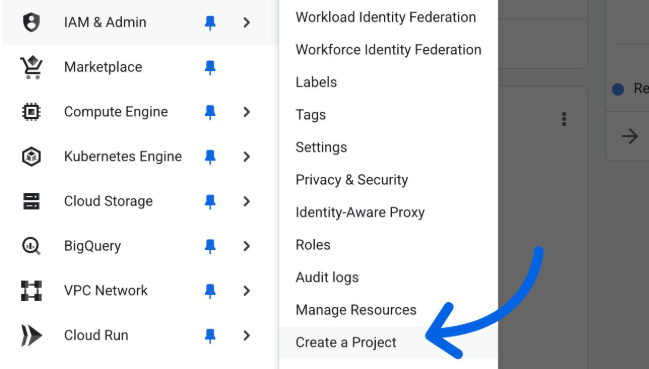
2. Go to IAM & Admin > Create Project and enter your project details.
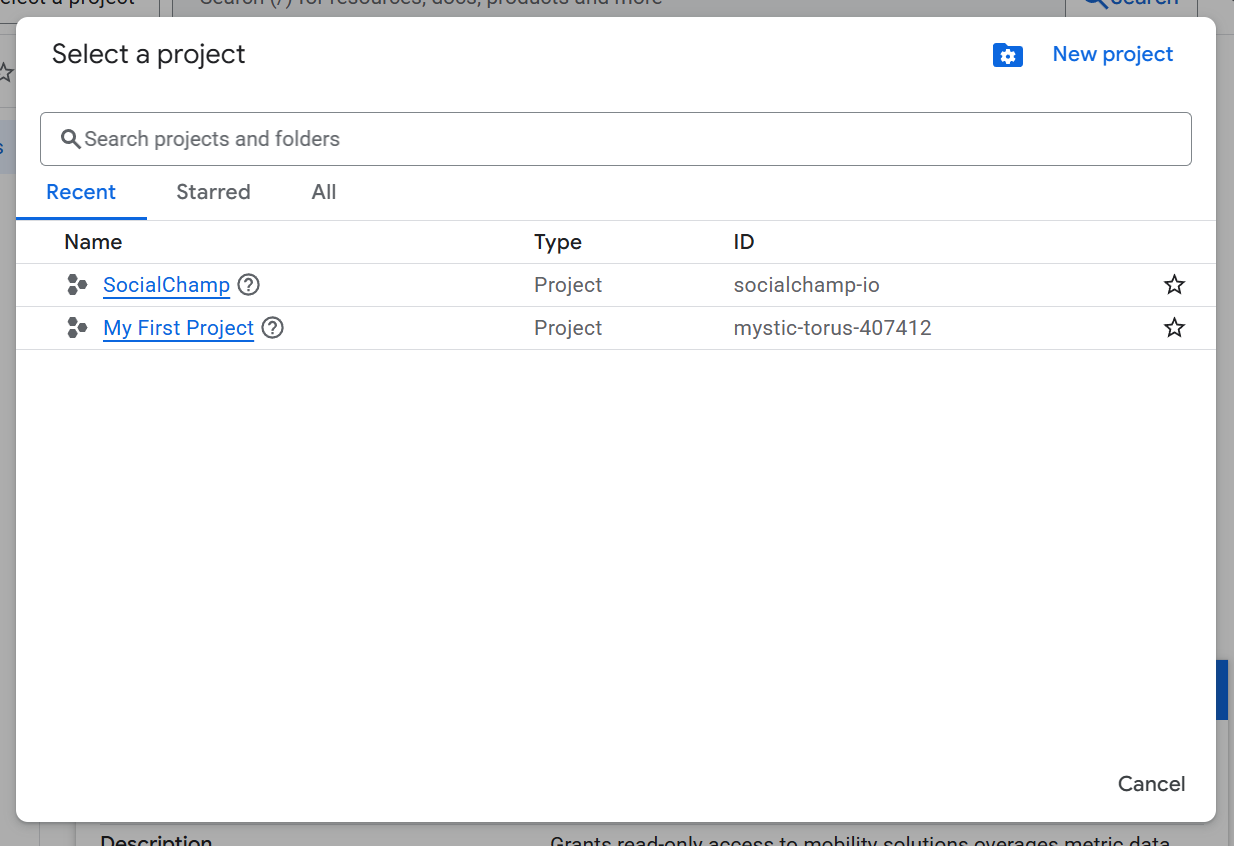
3. Once your project is created, stay within that project for the following steps.
2. Enable Required APIs
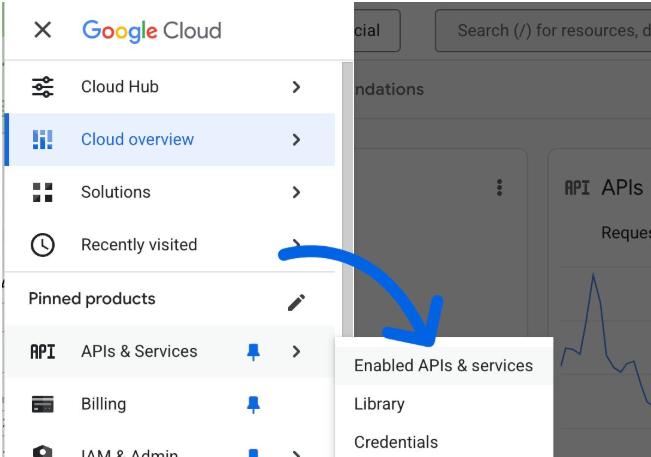
1. In your project, go to APIs & Services > Enabled APIs & Services.
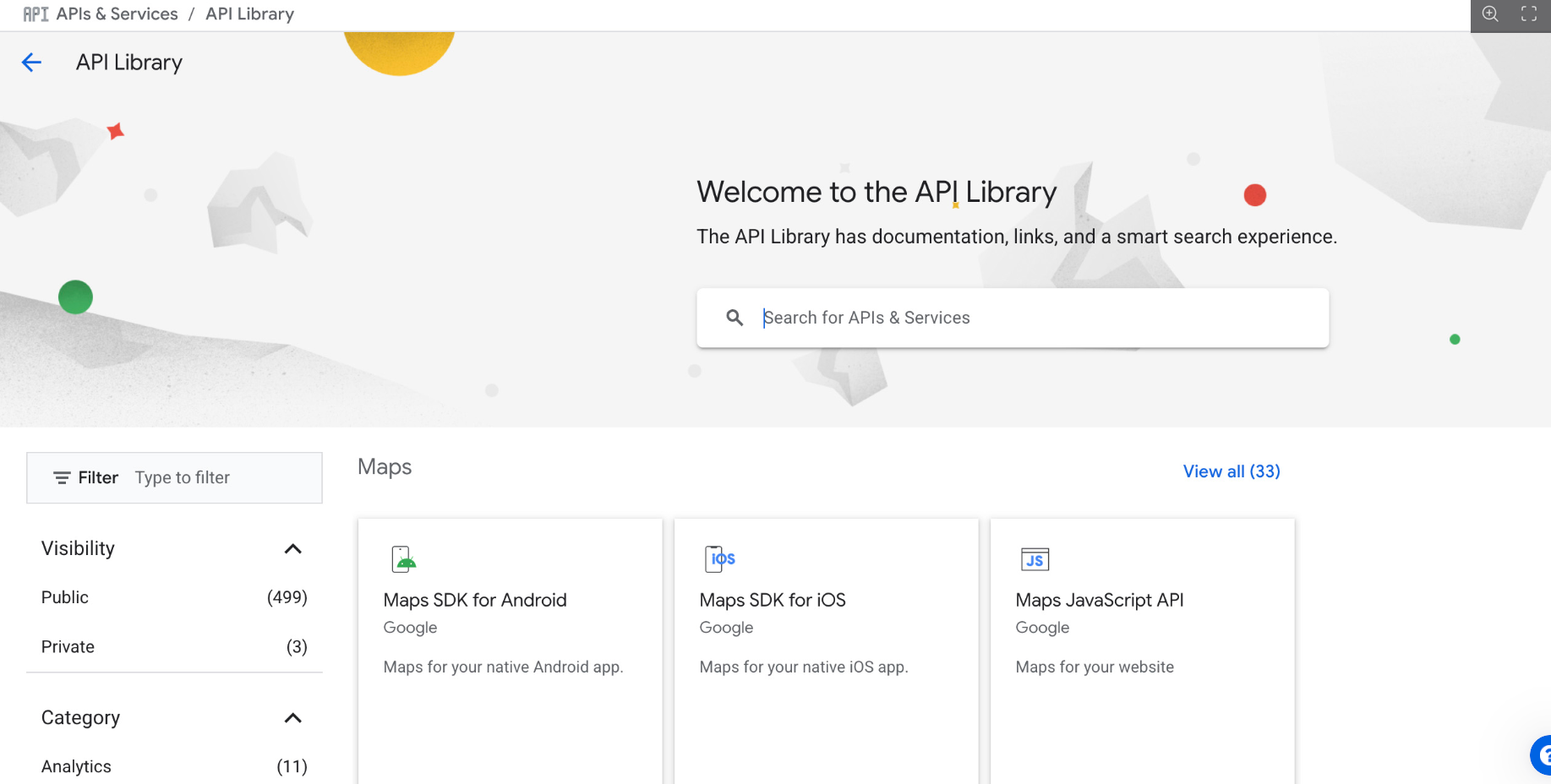
2. Click Library and enable the following APIs and make sure that they are enabled.
-
- Google Cloud APIs
- Google Cloud Storage
- Google Cloud Storage JSON API
- Google Play Android Developer
3. Create a Service Account
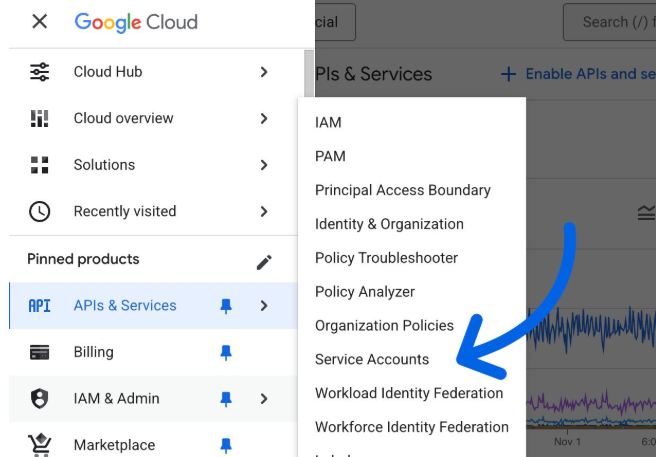
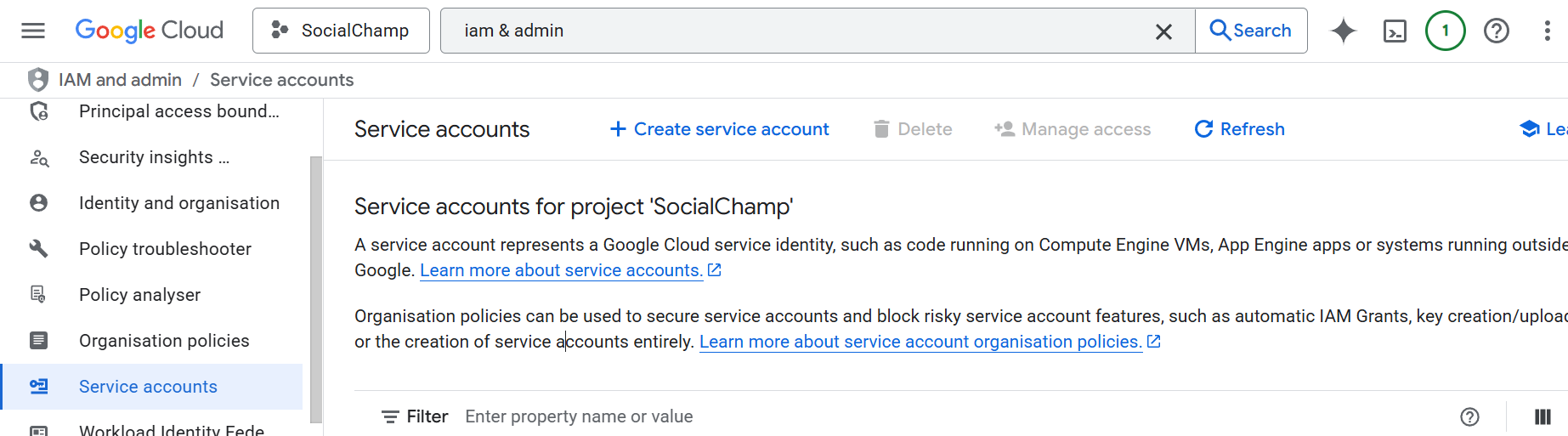
1. Go to API & Services > Service Accounts.
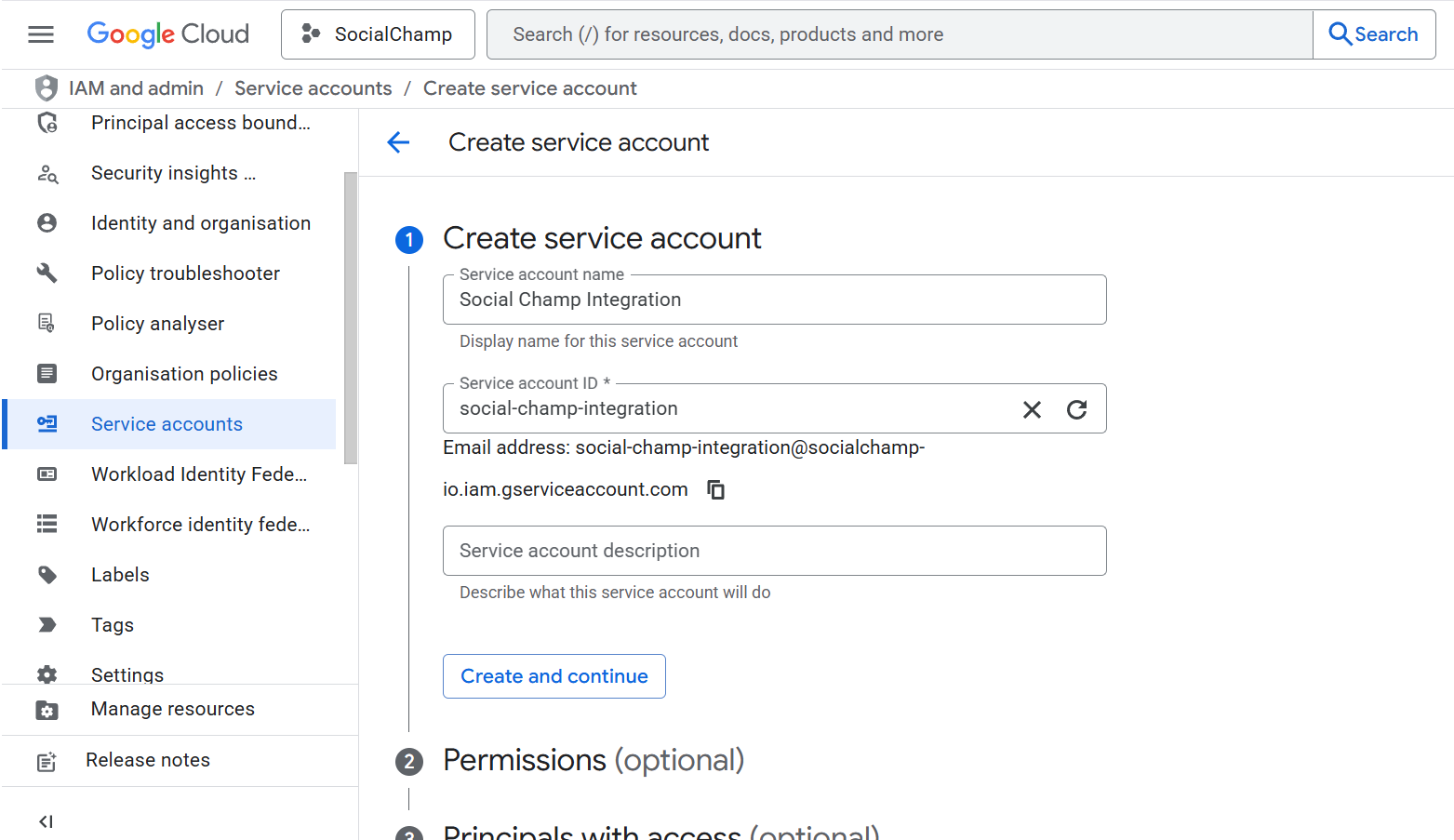
2. Click Create Service Account and give it a descriptive name (e.g., Social Champ Integration).
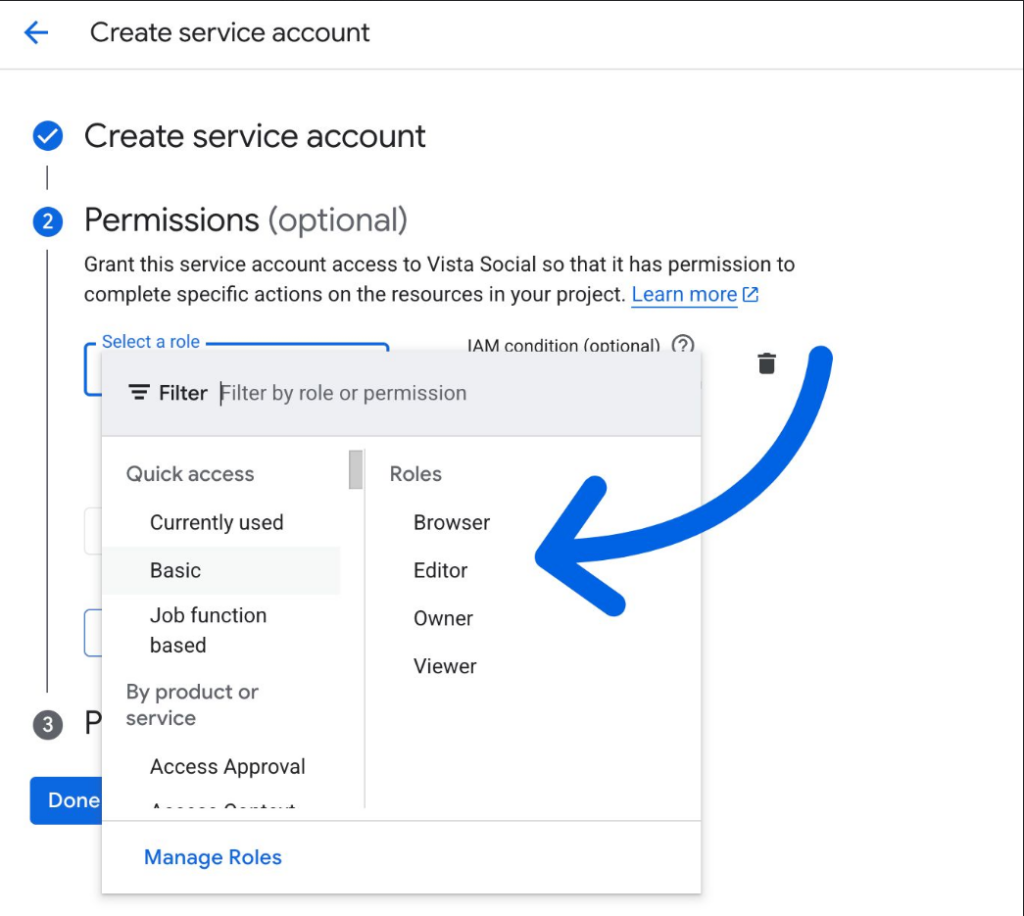
3. Select Grant this service account access to project. Under Select a role, choose Basic > Browser.
4. Click Done to finish creating the account.
4. Generate & Download a Private Key
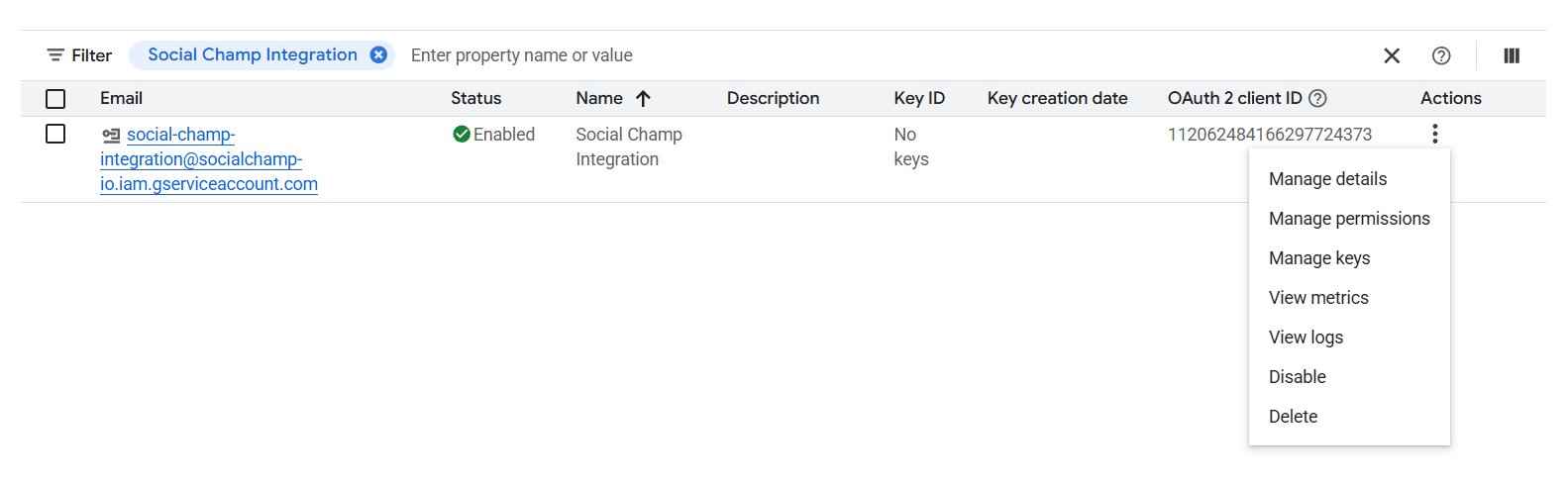
1. In the Service Accounts section, find the account you just created.
2. Click the three-dot menu beside it and choose Manage keys.
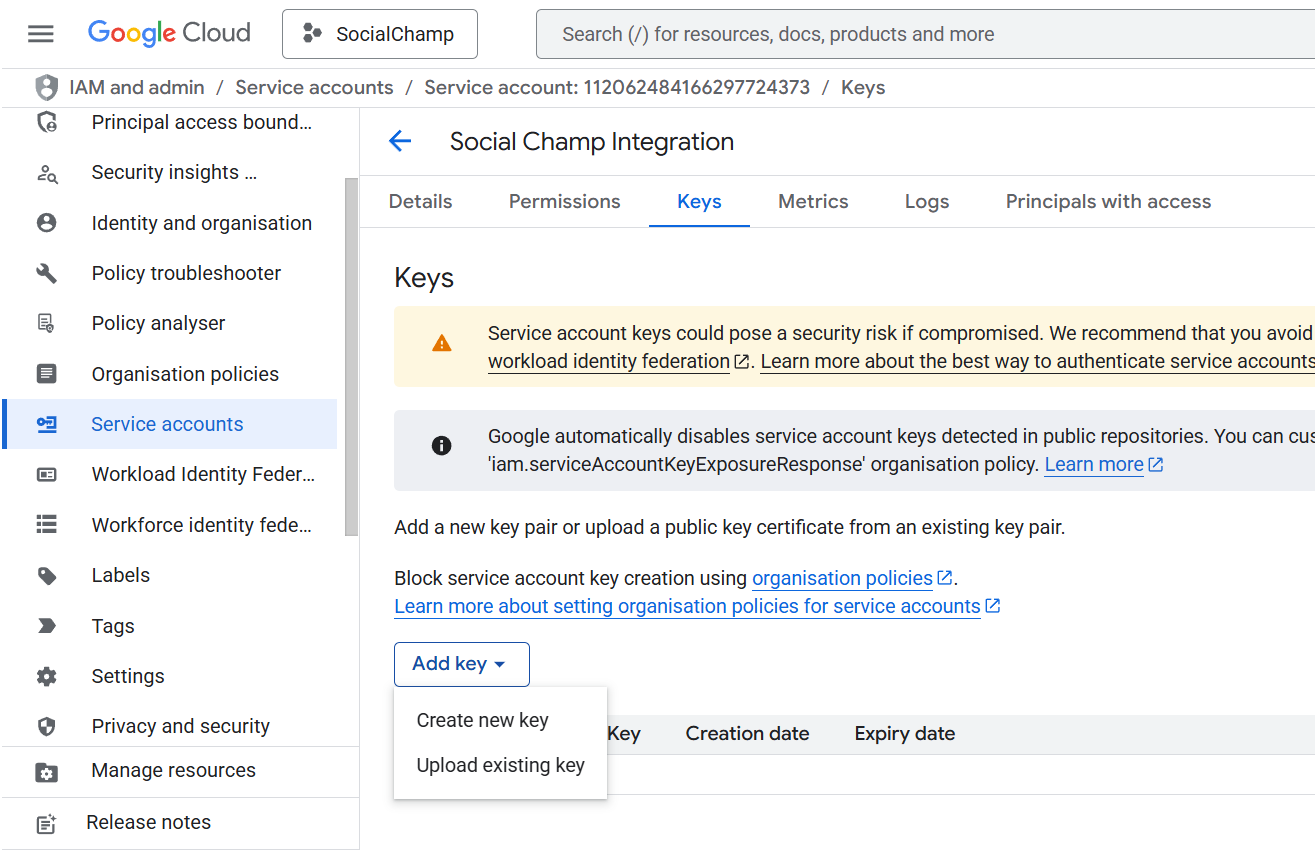
3. Under Add Key, select Create new key.
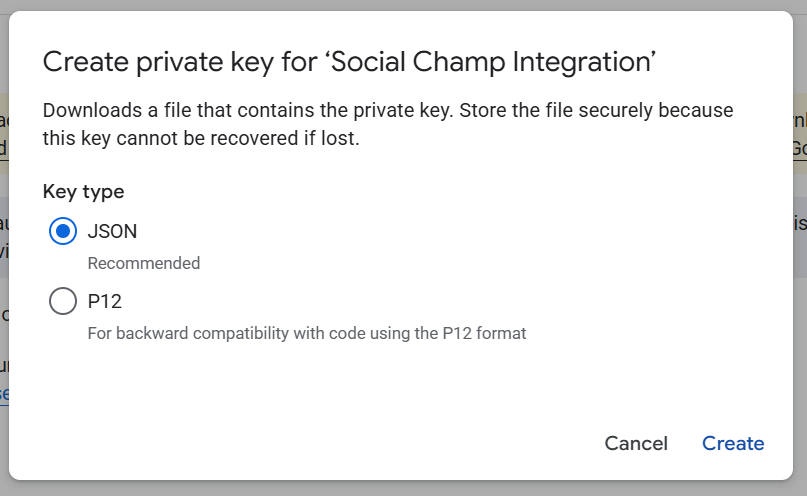
5. Choose JSON and click Create.
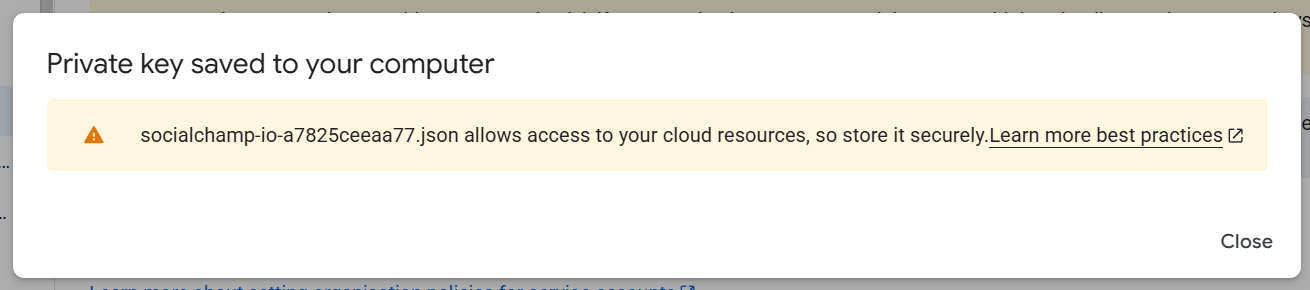
6. Your private key file (.json) will be downloaded automatically. Store it securely, you’ll need it later.
5. Invite Users
1. Navigate to your Google Play Console and go to Users and permissions.
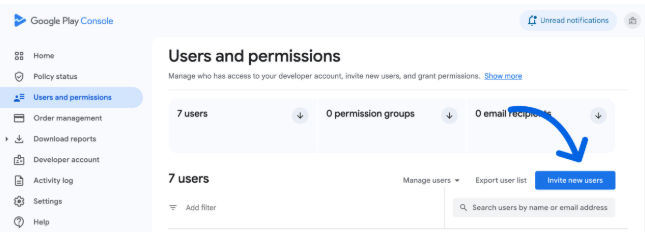
2. Click Invite new users and enter the email address associated with your service account. You can find this information in
the Service Account Details tab of Service Accounts in the Google Cloud Console.
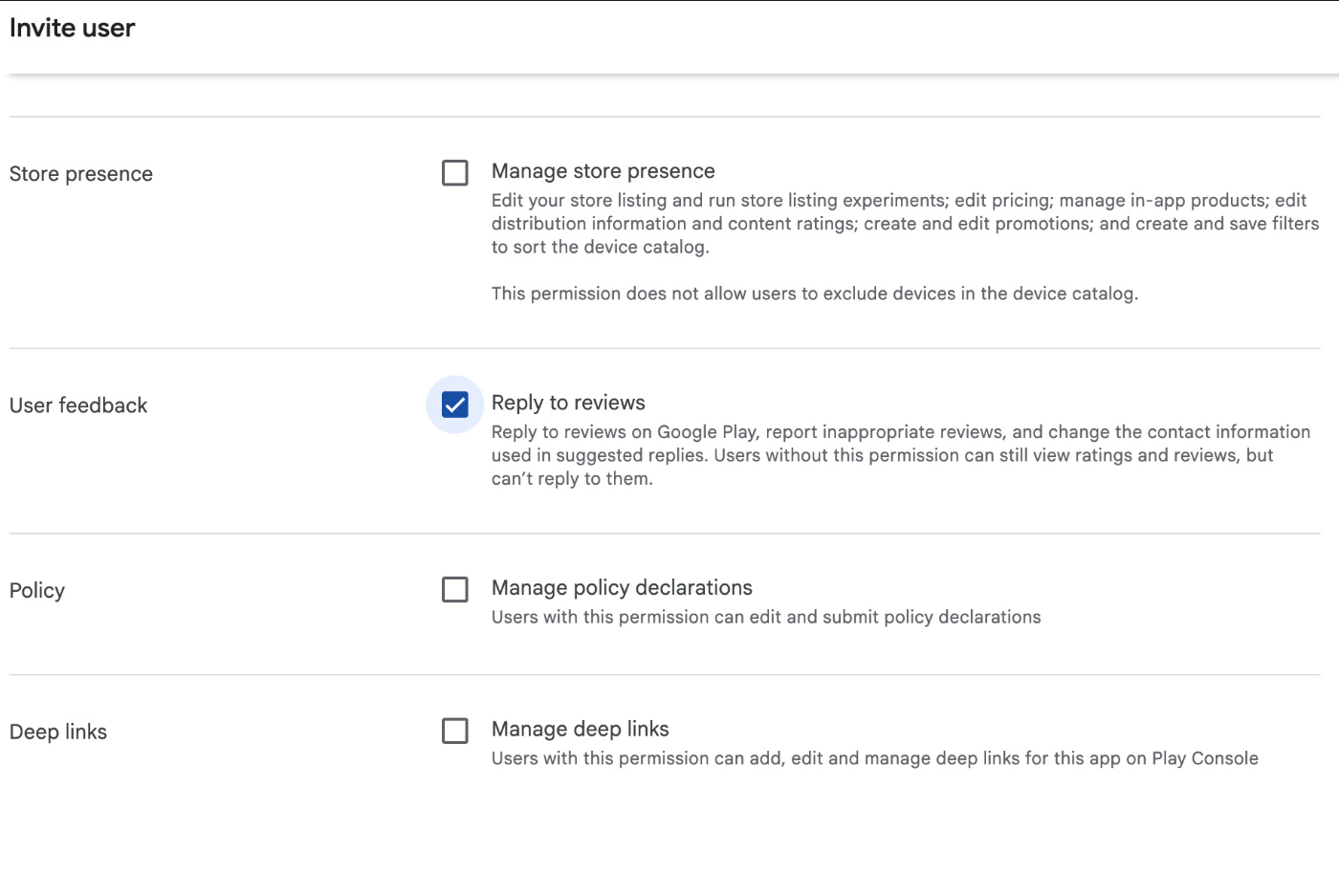
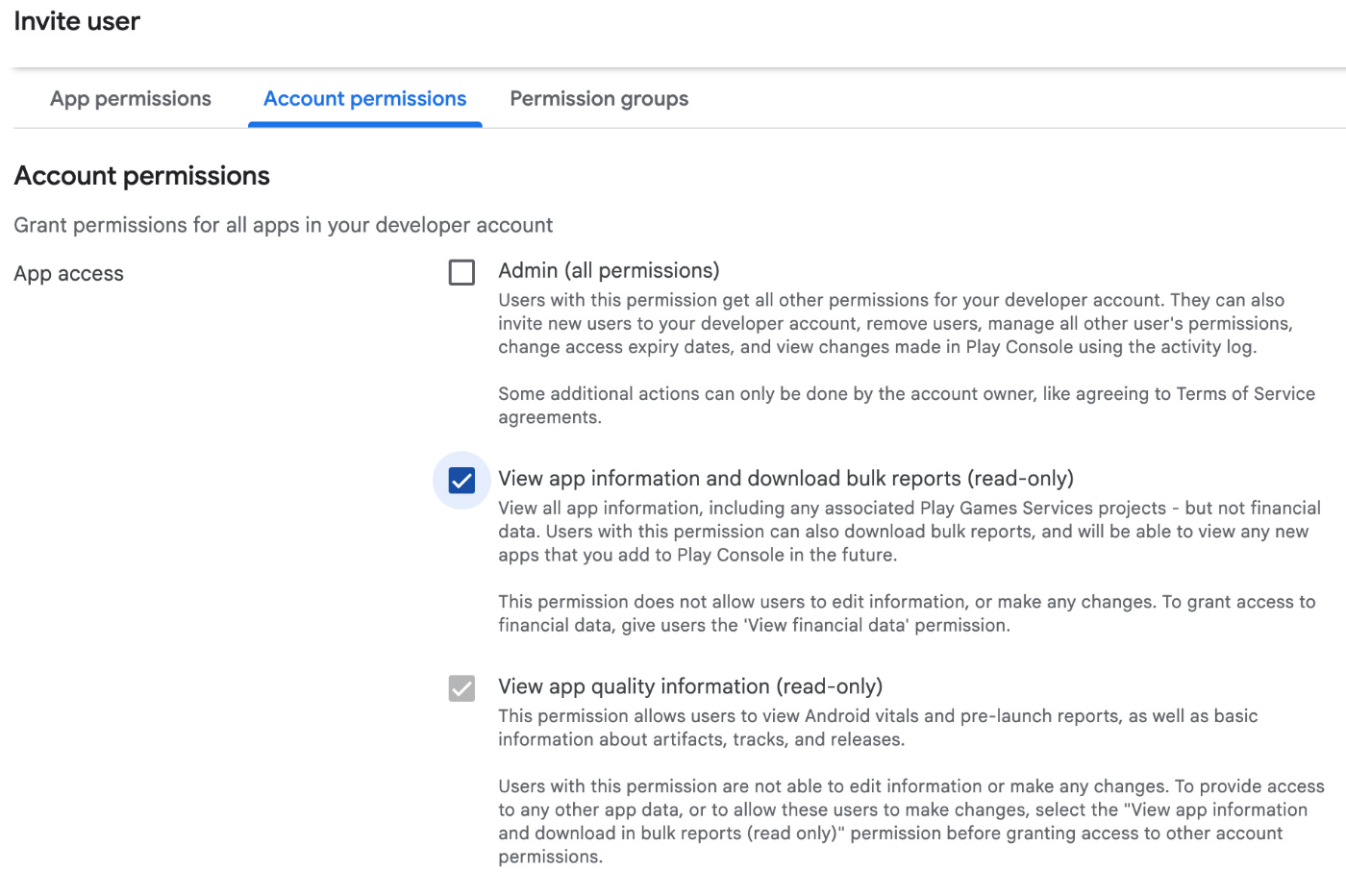
3. Assign permissions like View app information, Download reports, and Reply to reviews so Social Champ can manage reviews as needed.
6. Connect in Social Champ
Once your Google Play Console is ready and permissions are set:
1. Log in to your Social Champ account.
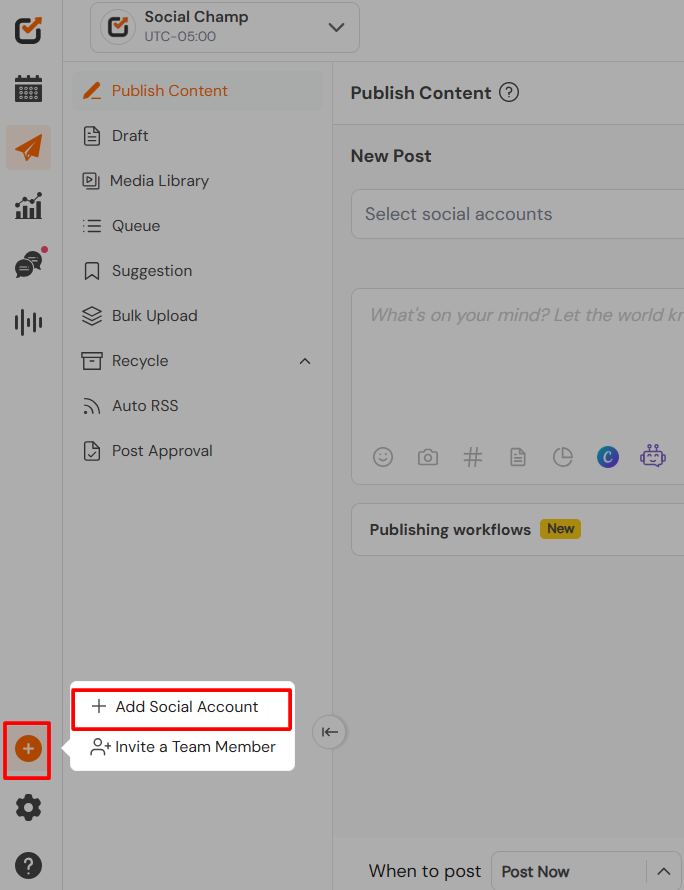
2. Navigate to Add Button and select Add a Social Account.
3. Select Google Play Store from the list of available integrations.
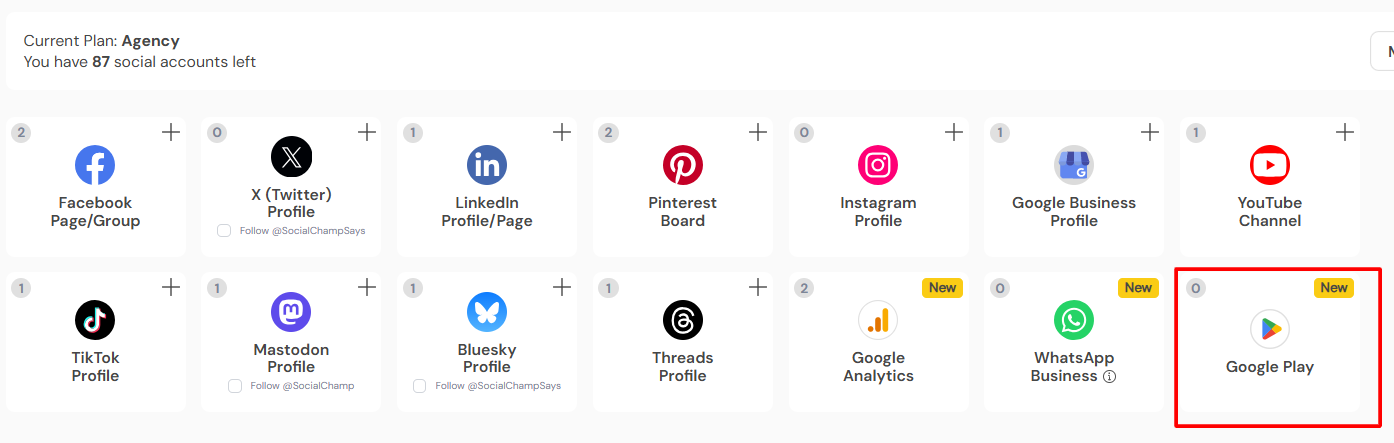
4. Enter the app package name.
5. Upload the JSON private key file you downloaded refer to step 4.
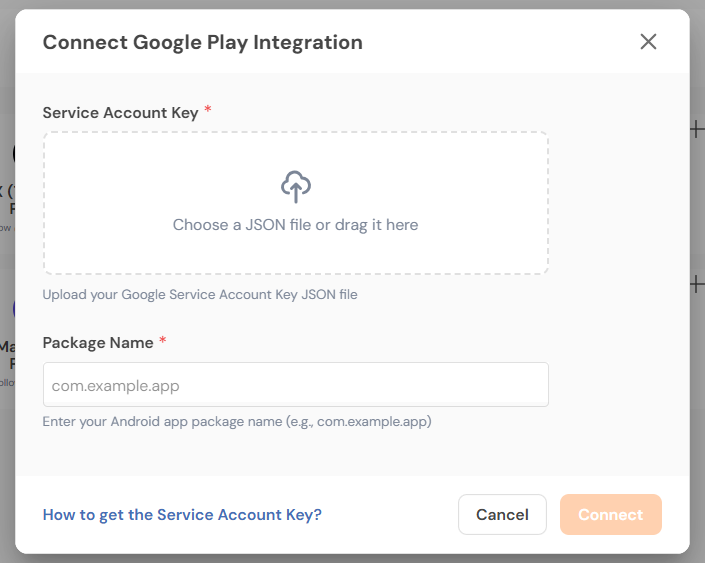
6. Click Connect to complete the integration.
Note: You may need to wait up to 24 hours before setting up the integration in Vista Social. Google requires some time for these Account Permissions to take effect.
Get the Support you need
Having trouble? Got a question? We’re here to support you every step of the way. Simply email us at Support@socialchamp.com, and we’ll get back to you.
Social Champ’s integration of Zapier is a recent addition to the already existing chest of feature integrations on board. Zapier Read more
Hey Champs! Follow this step-by-step guide to learn how you can use Social Champ’s Link Shortening feature. When you first Read more
Note: This guide is based on an earlier version of Social Champ. Some steps or features may have changed. Please Read more
Link shortening is a crucial tool for marketers, offering a more concise way to share URLs across social media. Social Read more